
If your Roku keeps buffering, dropping to blurry quality, or randomly disconnecting from WiFi, you’re not alone. Streaming issues are often caused by weak wireless signal, crowded networks at night, or interference from walls, TVs, and other devices. The good news is that there’s a simple fix that works in many homes: switching to a wired connection.
This How to Connect Roku to Ethernet: Wired Internet Setup Guide shows you exactly how to set up Roku with a wired connection for smoother streaming and fewer headaches. And if your current internet service still struggles even when wired, RingPlanet can help you upgrade to reliable 4G/5G internet or add backup internet so your streaming stays online during outages. If you want help checking coverage and choosing an option, RingPlanet can walk you through it.

How Roku Wired Internet Works (and Why It’s Different from WiFi)
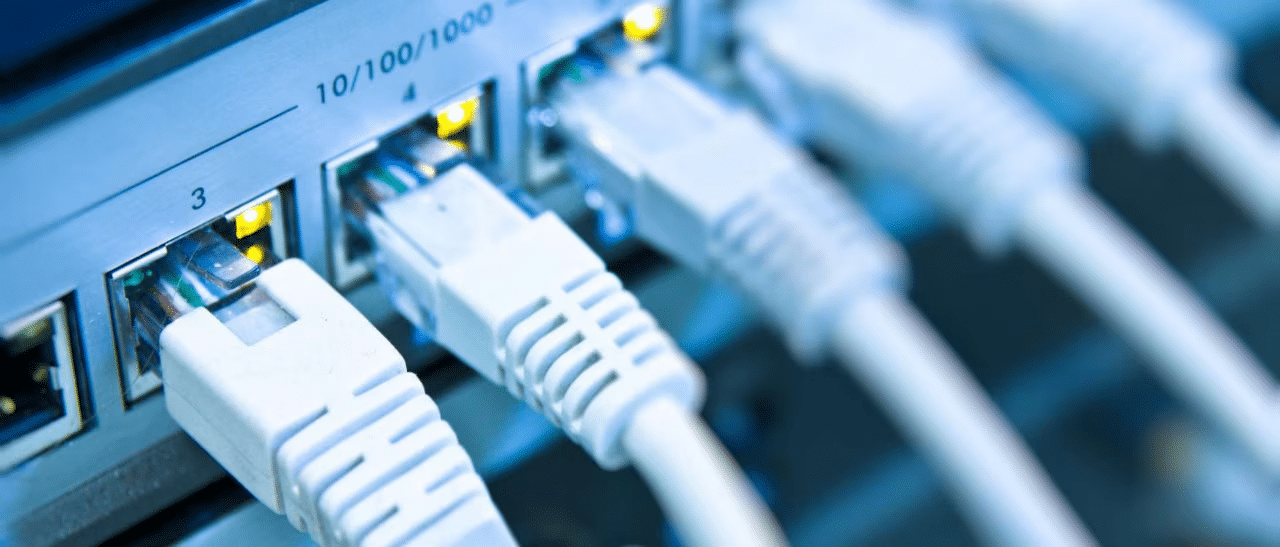
When you connect Roku to Ethernet, you’re running internet directly from your router to your Roku device using a cable. That removes many of the problems WiFi can’t avoid, like interference and distance.
What you need for a wired Roku connection
- A Roku device (or TV) that supports Ethernet, such as:
- Roku Ultra (most models)
- Some Roku-enabled smart TVs
- An available Ethernet port on your router
- An Ethernet cable (Cat5e or Cat6 is ideal)
If your Roku model does not have an Ethernet port, you may still be able to use a compatible USB Ethernet adapter (more on that below).
Why Use Ethernet for Roku Streaming? Key Benefits
A wired connection isn’t “faster” in every case, but it’s often more stable, which matters most for streaming.
Benefits you’ll notice quickly
- Fewer buffering interruptions
- Less video quality dropping in the evenings
- More consistent streaming in HD and 4K
- More reliable performance for live TV apps
- Less lag when using streaming apps with heavy menus
Where RingPlanet fits in
If your WiFi has been the bottleneck, Ethernet can fix a lot. But if your provider is slow, congested, or unreliable, wiring the Roku won’t solve the underlying connection. That’s where RingPlanet helps with:
- Unlimited 4G/5G internet options
- No contracts
- Plug-and-play setup
- Backup internet solutions to keep streaming online during outages
- Options that work especially well where cable/fiber is inconsistent
Step-by-Step: How to Connect Roku to Ethernet
Step 1: Confirm your Roku supports Ethernet
Check the back or side of the device for an Ethernet port labeled:
- LAN
- Ethernet
- Network
If there’s no port, jump to the section on adapters.
Step 2: Plug one end of the Ethernet cable into your router
Use an open Ethernet port on your router (usually labeled 1–4).
Step 3: Plug the other end into your Roku
Connect the cable firmly to the Roku’s Ethernet port.
Step 4: Set Roku to “Wired” connection
On Roku:
- Settings → Network → Set up connection → Wired
Roku will automatically test the connection and confirm it has internet access.
Step 5: Confirm streaming quality
Open a streaming app and test playback. If you want to verify connection details:
- Settings → Network → About
You should see “Wired” plus connection status.
If Your Roku Doesn’t Have an Ethernet Port: Your Options
Option A: Use a Roku model with Ethernet
If you stream heavily or use 4K often, upgrading to a Roku that supports Ethernet can be worth it.
Option B: Use a compatible USB Ethernet adapter
Some Roku setups can support Ethernet via USB adapters, but compatibility varies by device and software version. If you’re going this route, check your specific Roku model details and supported adapters before buying.
Option C: Improve WiFi instead (if wiring isn’t possible)
If you can’t run a cable:
- Use a mesh WiFi system
- Move the router closer and higher
- Stream on 5GHz if you’re close to the router
- Switch to 2.4GHz for longer range if needed
If your household needs more consistent internet overall, RingPlanet can still be the solution—especially if you want flexible internet without a contract.
Pricing & Plan Considerations (What Matters for Wired Streaming)
Wiring your Roku is small-cost, high-impact:
- Ethernet cable: usually inexpensive
- Optional accessories: longer cables, cable clips, wall raceways
But your overall streaming experience still depends on your internet plan. Households that stream regularly should look for:
- Unlimited data (or high data limits)
- Strong evening performance
- Stable connection (not just “fast on a speed test”)
- Support and flexibility
RingPlanet offers internet solutions designed to support real streaming households:
- 4G/5G wireless internet options
- No contracts
- Easy setup
- Backup internet that keeps Roku working during provider outages
Alternatives & Comparisons: Best Ways to Improve Roku Performance
| Option | Best For | Watch-outs |
| Ethernet (wired) | Best stability, fewer WiFi issues | Requires cable run |
| Mesh WiFi | Big homes, dead zones | Adds cost, setup |
| WiFi extender | Simple range boost | Can reduce speed, not always stable |
| Upgrade internet plan | Low bandwidth households | Doesn’t fix weak WiFi coverage |
| RingPlanet 4G/5G internet | Reliable streaming, flexibility | Placement matters for best results |
| Backup internet | Outage protection | Additional service cost |
If your biggest issue is outages or inconsistent evening performance, a second connection (backup internet) can be the difference between streaming and staring at a loading wheel.
Tips to Get the Most Out of a Wired Roku Connection
- Use Cat5e or Cat6 cables for reliability
- Avoid extremely long, low-quality cables if possible
- Restart your router monthly for performance stability
- If streaming still buffers, test your internet during peak hours (7–11 PM)
- If outages are common, add backup internet so streaming doesn’t go down
A wired Roku connection removes WiFi problems. If buffering still happens after wiring, the next step is usually improving your internet service quality.
FAQ: Connecting Roku to Ethernet
Does Ethernet make Roku faster than WiFi?
It often makes Roku more stable, which feels faster because you’ll see less buffering, fewer connection drops, and fewer quality drops.
Which Roku models support Ethernet?
Many Roku Ultra models support Ethernet, and some Roku TVs do as well. The easiest way is to check for an Ethernet port on the device.
What if my router is far from my TV?
Options include running a longer Ethernet cable, using neat cable channels along baseboards, or upgrading your WiFi system if wiring isn’t possible.
Will Ethernet fix buffering completely?
It fixes many WiFi-related issues. If your provider slows down at night or has outages, you may still see buffering—because the issue is upstream.
Can RingPlanet help if my internet is the real issue?
Yes. RingPlanet offers unlimited 4G/5G internet options and backup internet solutions with no contracts, which can improve consistency for streaming households.
Conclusion: Wired Roku Setup + Reliable Internet = Smooth Streaming
This How to Connect Roku to Ethernet: Wired Internet Setup Guide gives you the quickest path to more stable streaming. If you want fewer interruptions, clearer quality, and less troubleshooting, Ethernet is one of the simplest upgrades you can make.
If you’re still having buffering, slowdowns, or outages even after switching to wired, it’s time to look at the internet connection itself. Contact RingPlanet to check coverage and get set up with reliable 4G/5G internet or a backup connection that keeps your streaming online.